Link Discord and WoW to Keep the Guild Chatting Wherever You Are
Cody Owens
August 11, 2026
Discord’s roots in games like World of Warcraft® go pretty far back. In fact, when Discord first launched and only had a handful of users, many of them were using it for their MMO guilds!
We figured after all these years, it’s about time we partnered with our friends at Blizzard to officially bring your Discord and World of Warcraft guild chats together.
Linked Guild Chat is Here!
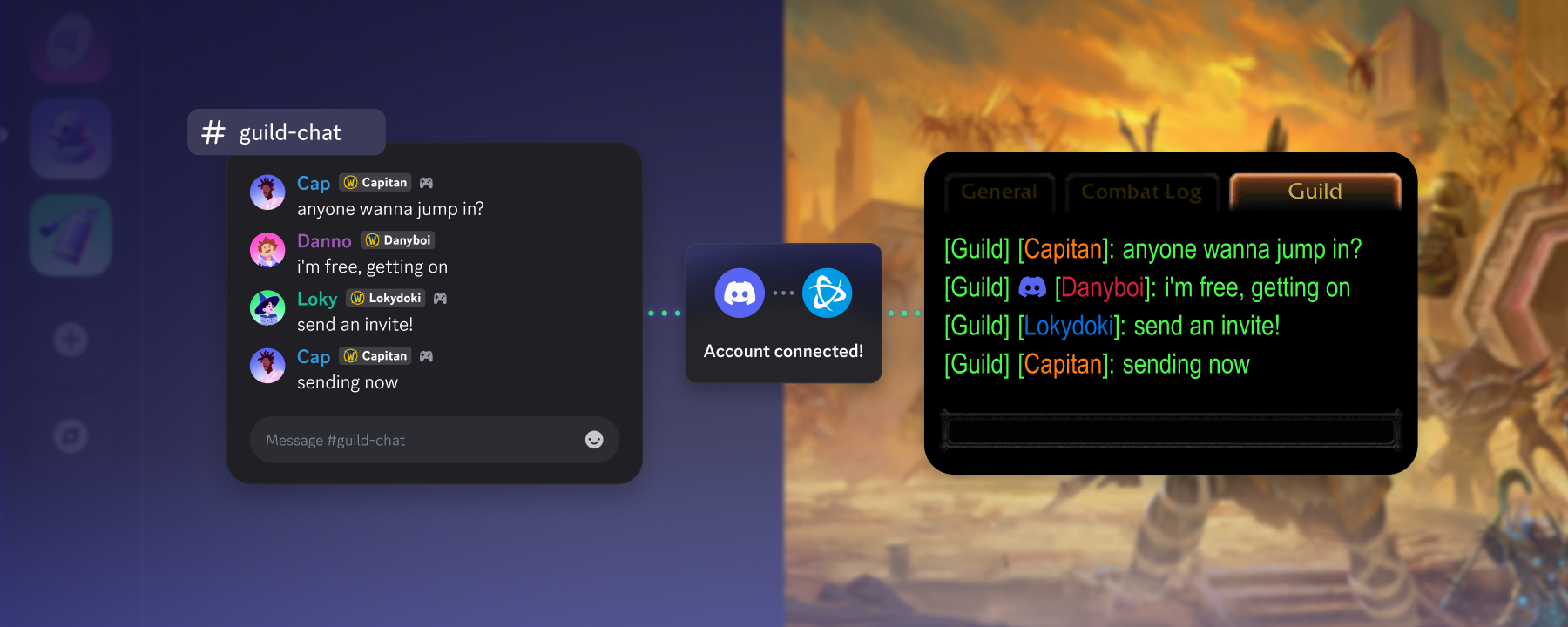
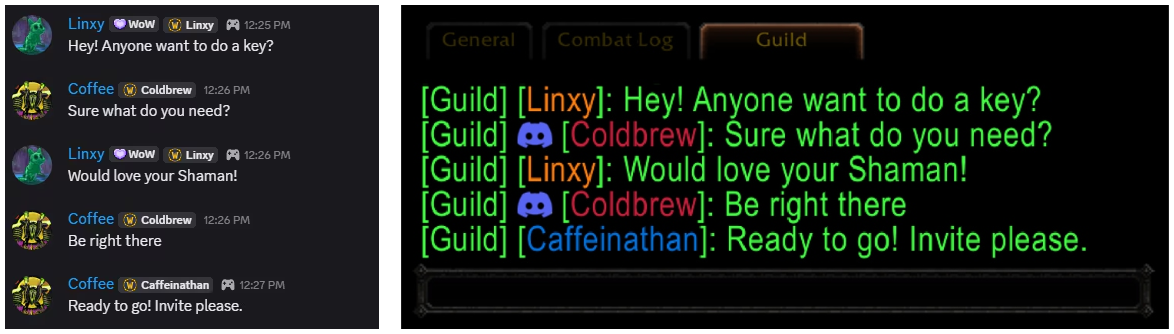
From Discord to your guild chat, or from guild chat to Discord. By linking Battle.net and Discord together, messages sent from either Discord or World of Warcraft can be synced, letting you chat with your guild whether you’re mid-raid in WoW, chilling in the guild Discord server, or out grabbing dinner.
In WoW, you’ll now see a Discord icon to represent when messages to the guild chat have been sent from Discord.
How to Connect Battle.net® and Discord to Link Your WoW Guild’s Chat
The process to connect Discord to World of Warcraft has two big parts to it: The first involves linking your accounts, and the second is syncing your guild chats together.
First, Link Your Accounts
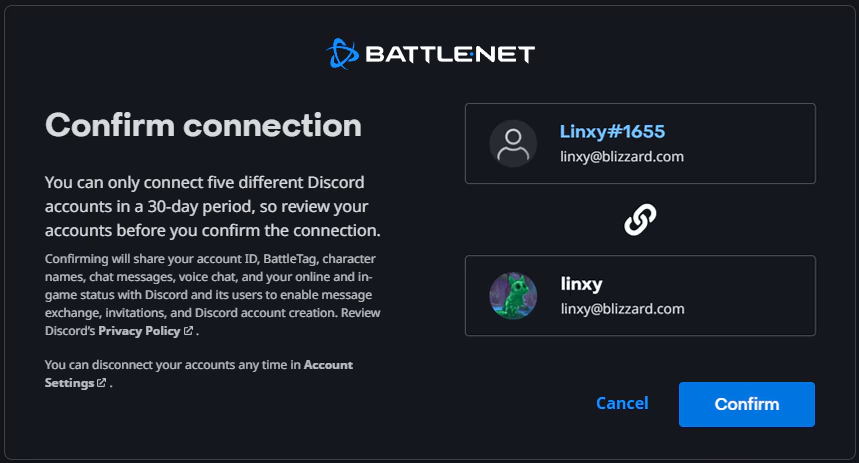
You can link your accounts directly through Discord! If you’ve already linked before, you may still need to update your connection.
In Discord, head to your “User Settings” page.
Click “Connected Apps”, then click on the Battle.net logo.
Depending on whether you’ve connected other accounts in the past, you may need to click the “View More” arrow to find that option.
Read through the required permissions, follow the prompts, and then you’re set!
You can also link directly in World of Warcraft by following the instructions on Blizzard’s page. If you’re still unsure how Connected Accounts in general work, take a peek at our support article on ‘em.
Second, Link the Channels in World of Warcraft
The next step happens in Azeroth. In-game, you’ll have either your WoW guild’s leader or a guild officer take the following steps:
Open the Guild & Communities UI with the (J) hotkey.
Select the Roster tab on the right side of the panel.
Select "Guild Settings" on the bottom right of the panel.
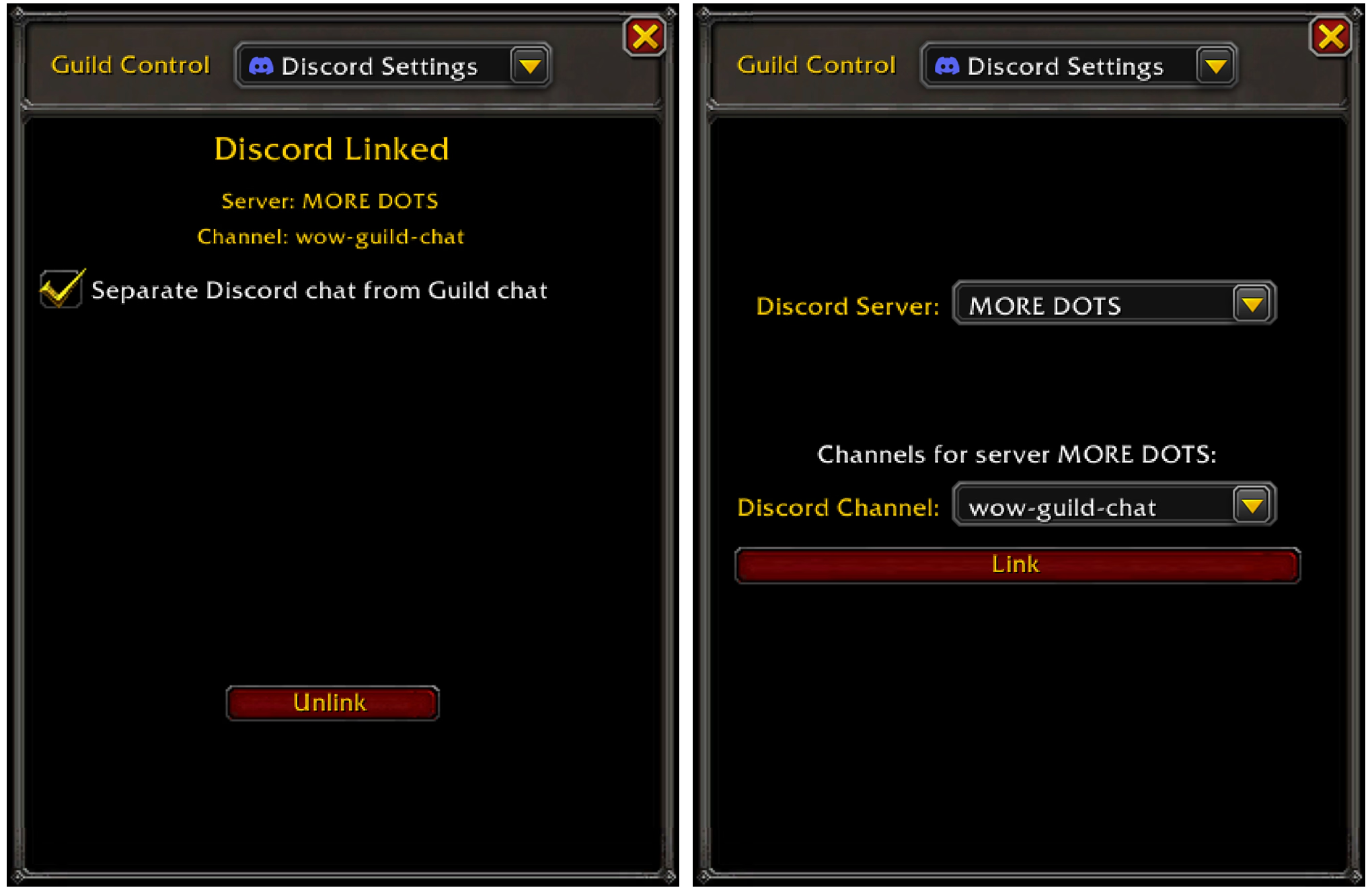
Under the Guild Control dropdown, select Discord Settings.
In this window, you will see all Discord servers you belong to and select the specific channels that have linking permissions available.
Click a server to select it.
Select a linkable channel from the dropdown and click the link.
Approve
If you’re not seeing these options available, that may mean you need to check the permissions you have for the Discord server you’re trying to link. You can check this by heading over to your Discord server settings and check that you have the Manage Channels, View Channel, and Send Messages user permissions.
Get back to running keys and raid prep with friends!
You and your Warcraft guild should be all set now! Over on Blizzard’s page, you’ll find details on a few extra settings you can play around with, such as how your character name is displayed and chat filters to control where messages appear.
I'm actually pretty hyped to get this set up for me and my friends this weekend. Chasing people down to fill keys or asking a million times if everyone's got flasks and other stuff ready for raid is always a pain, so having everything in one place is gonna make organizing way easier. Raid nights should be a lot less chaotic now.

















.png)
.png)




Nameplates_BlogBanner_AB_FINAL_V1.png)

_Blog_Banner_Static_Final_1800x720.png)


_MKT_01_Blog%20Banner_Full.jpg)


.png)


